Beeline Help
Beeline turns long web addresses into short, shareable links and QR codes. Share a link however you like, then see how many times it has been opened. You can even change where a link goes later without changing the short link or QR code you already shared.
The quick version
- Open Make a Link and paste a web address.
- Enter a slug if you want a readable short link, or leave it blank for a random one.
- Tap Make a beeline.
- Copy the link, download a QR code, make a poster, or put the link on your projector.
That’s it. You can come back to My Links anytime to manage your links and see how they’re being used.
Make a link
Paste a web address into Enter a link.
The slug is the part of the short address that comes after link.apphive.us/.
For example, if you choose fractions, your short link will be:
link.apphive.us/fractions
A custom slug makes a link easier to recognize, remember, or say out loud. You might use fractions, exit-ticket, or station3.
Leave the slug blank if you don’t care what the short link looks like. Beeline will create a random one for you.
Important: A slug can’t be changed after a link is created. If you leave it blank, Beeline asks you to confirm before creating the random slug.
Length is the least of it
Some links are already short enough to type.
A short link still gives you a name you choose, a destination you can change after it’s printed, a QR code sparse enough to scan from across the room, and a count of how many people opened it.
It’s worth making a beeline, even when the original link is already short.
Download
Beeline gives you several ways to share or print a link.
QR code
Download the QR code as a PNG or SVG. You can choose the two colors used to create it.
You can also get the QR code for any link by clicking its QR code in My Links.
PPTX slide
Download a PowerPoint slide containing your short link, name, and QR code. The file works with PowerPoint, Google Slides, Keynote, and Canva.
Everything on the slide is editable. The short link and name are real text, and the QR code is made from shapes. You can move, resize, edit, and recolor the elements to fit your presentation.
If you change the QR code’s color, keep it dark on a light background. A light QR code or one placed on a colored background may be difficult for phones to scan.
Download PDF poster
Download a clean, black-and-white poster with your short link and a large QR code.
It’s handy for:
- Learning stations
- Classroom doors
- Handouts
- Wall displays
- Anywhere students need to scan a link
This is especially useful on an iPad or iPhone. When you print a web page from those devices, Apple adds the web address, date, and time to the bottom of the page. The PDF gives you a clean poster instead.
Print poster
Send the same poster directly to your printer.
The poster prints in landscape and black and white, making it suitable for virtually any printer while keeping the QR code easy to scan.
Print it once, point it anywhere
This is one of Beeline’s most useful features.
After you’ve printed or shared a link, use Point somewhere new to change its destination. The short link and QR code stay exactly the same. They simply start sending visitors somewhere new.
For example, you could print a station card once and reuse it all year:
- This week’s activity
- Next week’s activity
- A new resource
- A different assignment
- A completely different website
Print it once. Point it anywhere.
There’s no need to reprint the card every time you change the activity.
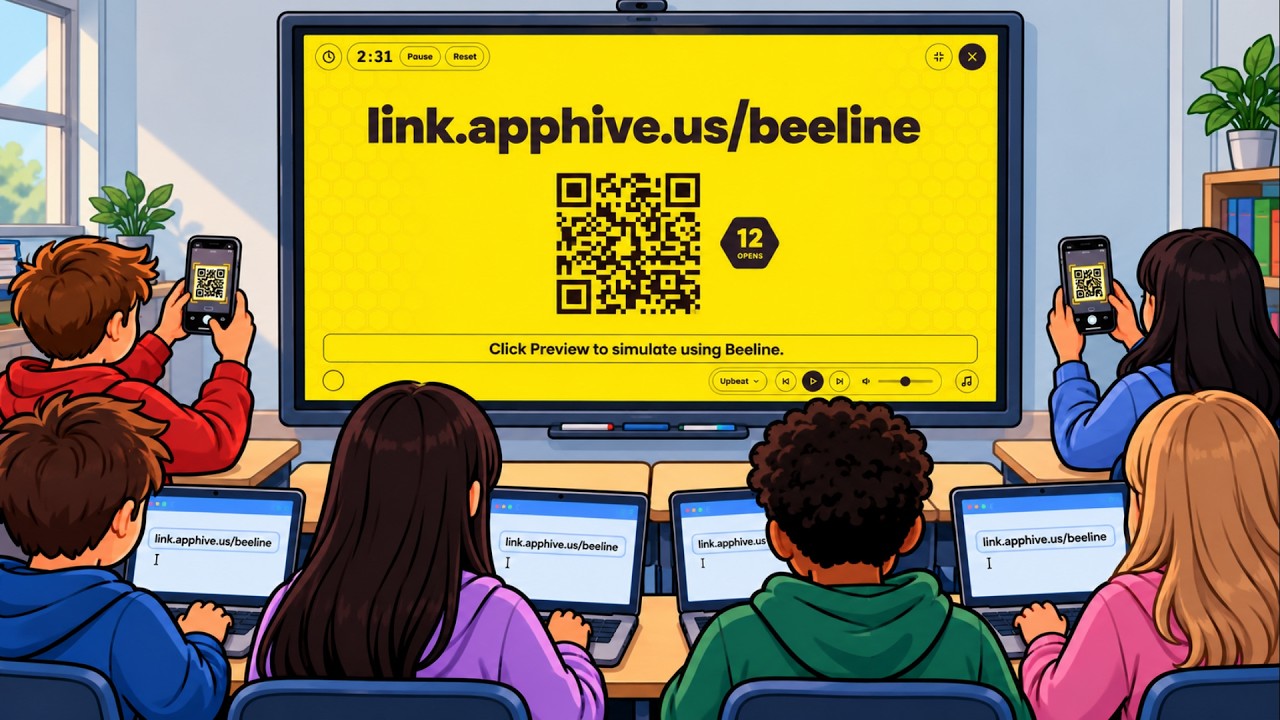
Display full screen
Puts one of your links on a projector or large display.
Students see:
- The short link in large type
- A QR code that’s easy to scan from across the room
- A running count of visits
The visit counter starts at zero each time you enter full screen. It shows how many people have opened the link since you put the screen up, not the link’s total number of visits.
Beeline checks for new visits every few seconds, so the number on the screen may occasionally be a little behind.
When you leave full screen, the counter resets. The link’s total visit count is still available in My Links.
Customize your display
You can customize the full-screen display while it’s running.
- Add instructions in the box below the QR code. Beeline starts with the link’s name, but your instructions are saved separately. Changing the instructions does not rename your link.
- Change the backdrop using the color swatch in the bottom corner. Each link remembers its own backdrop color. Beeline opens on yellow because a bright backdrop usually scans better than a dark one, and the difference is biggest on Chromebook screens.
- Use the timer with the clock button in the top corner. Set the minutes and seconds, then press Start. You can pause and resume the countdown. In the last ten seconds the honeycomb background begins sweeping across the screen, faster as the time runs down, so the class can see the time going even with headphones on. When time runs out, you’ll hear three beeps and the timer shows Time’s up until you press Reset.
- Play background music with the music button in the bottom corner. Choose a genre, then press play. Beeline shuffles through that genre and fades one track into the next. Each link remembers its own genre and volume. When a timer is running, the music fades out over the last ten seconds and stays off after the beeps. All of the music is lo-fi and in the public domain, so it’s free to play in class.
- Press Escape or the X to leave full screen.
My Links
Everything you’ve created lives here.
Your newest links appear first. Use the sort button to switch to Most visits.
Each link has several actions:
- Name this link gives it a name for your own list. Visitors won’t see this name.
- Copy link copies the short address so you can paste it anywhere.
- Open link opens the short link so you can check where it currently goes.
- Click the QR code to download it as a PNG or SVG. You can choose the colors.
- Download gives you the QR code, slide, and poster options described above.
- Archive removes a link from your main list without turning it off. Anything you’ve already printed continues to work. Use the Archived tag to find and restore it later.
Tap a link’s visit count to see its visit chart.
Tags
Tags help you keep your links organized. They’re just for you. Visitors won’t see them.
Tap + tag to add a tag to a link. You can add as many tags as you like.
For example, a single link could have these tags:
Math Fractions Station 3
There’s no limit to the number of tags you can create or the number of links that can use a tag.
The tag row at the top of My Links makes it easy to filter your list. Tap a tag to see only links with that tag, or tap All to see everything again.
Download your whole list
The Download button above your list lets you download multiple links at once.
Beeline downloads what you’re currently looking at.
For example:
- Select a tag, and you’ll get links with that tag.
- Search for something, and you’ll get the matching links.
- Open Archived, and you’ll get your archived links.
The button shows how many links are included before you download them.
You have five choices.
Listing PDF
Creates a printable list with eight links per page. Each link includes its QR code, name, and short link.
The QR codes alternate sides of the page to make it easier to scan the one you’re pointing at.
Two-column listing PDF
Creates a more compact list with sixteen links per page.
The middle of the page is left clear so you can cut the sheet in half and have two tidy lists.
Cut-out cards PDF
Creates four mini posters per page. Each card includes the short link, a large QR code, and the link’s name.
Dashed lines show where to cut.
These are handy for learning stations, table tents, or cards you can tape inside a folder.
Posters PDF
Creates one full-page poster per link, the same layout as Download PDF poster on a single link.
Good for printing a stack ahead of time or handing pages out to different stations, one link to a sheet.
Spreadsheet CSV
Creates a file you can open in Excel, Numbers, or Google Sheets.
Each row includes the link’s name, short link, destination, tags, number of visits, and creation date.
This can be useful for keeping a record of links from a unit or copying a group of links into a newsletter.
If your download will run to a lot of pages, Beeline tells you how many sheets to expect before creating the file.
Stats
A bigger-picture look at how your Beeline links are being used.
You’ll see visit totals for:
- Today
- Yesterday
- All time
Email summaries
Beeline can email you these numbers on a schedule, so you can see how your links are doing without opening the app.
Choose Off, Daily, Weekly, or Monthly from the summary card near the top of Stats.
The email goes only to you.
Send one now sends a summary right away, without waiting for the next scheduled send.
Charts can show activity over the last 48 hours, 7 days, or 30 days.
When scan information is available, the chart uses two tones to show where visits came from. The darker portion represents visits from scanned QR codes.
How people arrive
This shows how visitors reached your links.
You’ll see the number of visits that came from QR code scans compared with visits from links that were clicked or typed.
Each individual link has the same information beneath its own chart.
Most popular and Most scanned
These answer two different questions.
Most popular shows which links get the most visits.
Most scanned shows which of your QR codes are getting the most use.
For example, a link might be one of your most popular links because you shared it in an email, even though very few people scanned its QR code.
Busiest time and day
You’ll also find Busiest time of day and Busiest day of week.
These can be viewed for the last 30 days or all time.
All-time day-of-week statistics start when Beeline begins recording them. Beeline doesn’t fill in older data, so this section may say Not yet when you first start using the app.
What gets counted
Beeline counts a visit whenever someone opens one of your short links.
It doesn’t matter whether they:
- Tap a link
- Type the address
- Scan a QR code
QR code scans are also counted separately so you can see how much of your traffic comes from printed codes.
Each QR code Beeline creates includes a small marker that lets Beeline recognize a scan. It tells Beeline that the visit came from a QR code, not who scanned it.
Beeline records that a link was opened, but it doesn’t record who opened it.
No names. No accounts. No personal tracking.
The visit count is simply a count of link opens.
The brown bar at the bottom
When you’re signed in, you’ll see a brown bar along the bottom of the screen. This comes from Teacher Hive rather than Beeline.
Most of the time, you can ignore it. A few of its buttons are designed for other Connected apps.
The options you’ll use in Beeline are:
- Sign Out signs you out of your account.
- App Info shows information about the app.
- Guest / Teacher lets you see what a visitor sees.
You can ignore QR Code, which creates a QR code for Beeline itself rather than one of your links, and Name Tags, which is used by apps where students join in and contribute.
Be careful with Data
The Data option can clear information saved by an app.
Your Beeline links would survive, but your saved names, tags, and colors would be removed.
If you use Data, consider using Download JSON first to create a backup.
The brown bar automatically hides while you’re in full screen, so it won’t appear on your projector.
If you delete Beeline or your Pro subscription lapses
Your Beeline links are designed to keep working even if you stop using the app.
That’s important. If you’ve printed a QR code on a station card, poster, or sign, you shouldn’t have to worry about it suddenly becoming useless.
If you delete Beeline
Your short links continue to work and continue sending visitors to their current destinations.
You will lose the information Beeline saved about those links, including:
- Names
- Tags
- Colors
- Archived status
The links themselves remain on your Teacher Hive account. If you get Beeline again, your links will return to the app.
They’ll be unnamed and untagged unless you restore a backup.
If you delete your Teacher Hive account
Your links continue to redirect to their current destinations.
However, the Beeline information associated with your account is deleted along with the account. You won’t be able to manage, change, or retire those links afterward.
If your Pro subscription lapses
Nothing suddenly breaks.
Your links continue to work, and you can still see your list and where your links currently point.
However, visit counts and Point somewhere new are paused until you renew Pro.
One important thing to know
Beeline does not have a button that turns a link off.
Archive only removes a link from your list. It does not stop the link from working.
If you need a link to stop sending visitors to its current destination, use Point somewhere new to send it somewhere else.
Limits
Beeline lets you create up to 200 links per day.
Changing a destination is limited to:
- 20 changes per day for the same link
- 200 changes per day across all your links
These limits sit well above normal day-to-day use. A class of thirty students each making a link, several classes over, stays comfortably inside them. They’re there as a safety measure, to keep a mistake or a runaway process from filling your list.
About Beeline
Beeline was developed by Tony Vincent and coded with Claude Code.
It’s hosted on Teacher Hive and built with the Connected Superpower and Short Link Superpower.
This copy runs on tonyv.me, on top of YOURLS. Links made here are YOURLS links, so they also appear in the YOURLS admin.